
The Task Manager (taskmgr) allows users to monitor and manage system processes sorted within a streamlined list. By default, these processes are grouped by type, with categories including Apps, Background Processes, and Windows processes, to make the list more efficient. However, some users may prefer a flat, ungrouped list for easier scanning.
Keep reading to learn how to enable or disable “Group by type” in taskmgr in Windows 11.
How to activate or deactivate the “Group by type” view in Task Manager
Windows 11 processes can be viewed and managed within Task Manager. To make this monitoring experience more efficient for all individuals, Windows 11 allows users to enable or disable “Group by type” within Task Manager to suit their preferences.
💡 Tip: Check Things to look out for before proceeding.
📌 Use Cases: Basic troubleshooting for the toggle and temporarily switching views during debugging or app testing
📌 Prerequisites:
- Windows 11 operating system
- Standard user permission
- Open Task Manager. Press Ctrl + Shift + Esc.
- On the left pane, select Processes.

- On the right pane, click the See more button (•••) and hover over View.

- Click Group by type to toggle the setting on (with a check mark) or off (without a check mark).
- Check the list of processes and see how categorization changes.
- Group by type view enabled:
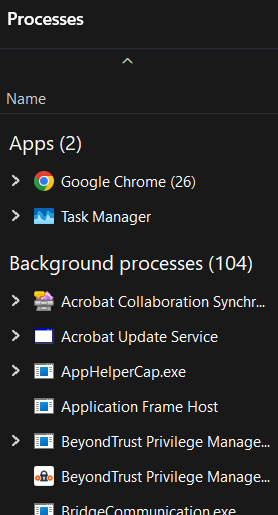
- Group by type view disabled:

- Group by type view enabled:
⚠️ Things to look out for
| Risks | Potential Consequences | Reversals |
| Misidentifying process contexts | When ungrouped, processes like system services or background tasks may appear mixed with user-launched apps, potentially leading to confusion when diagnosing issues or terminating processes. | Simply re-enable the “Group by type” view. |
| Inconsistent troubleshooting across devices or users | IT teams or helpdesk personnel may experience mismatched Task Manager views when assisting users remotely. This inconsistency can slow down issue identification and resolution. | Educate users or support teams on toggling the setting locally, or share step-by-step instructions to unify the interface during a session. |
| Forgetting the view is customized. | Users may forget they have altered the grouping, which could lead to misinterpretation of system load or missing context when monitoring active applications or services. |
|
Additional considerations when toggling the “Group by type” view in Task Manager
Adjusting the Task Manager processes view is a straightforward task. However, admins and power users must consider a few technical and practical limitations to help set expectations, especially when attempting to automate, enforce, or interpret the behavior of “Group by type” processes.
Scope of effect
This setting applies exclusively to the Processes tab within Task Manager. The grouping preference will not affect other tabs, such as Performance, App history, Startup, Users, Details, and Services.
Persistence across sessions
Once configured, the preferred grouping behavior will persist across Task Manager sessions. The setting doesn’t have to be reapplied every time the user opens the Task Manager and will not change unless manually re-configured.
No registry support
There is no direct way to toggle the Task Manager “Group by type” view within the Windows Registry. Therefore, administrators cannot programmatically enable or disable this setting and enforce a predictable behavior using .reg files or the Registry Editor.
Group Policy limitation
No Group Policy Object (GPO) is currently available to configure or enforce this Task Manager setting. IT administrators cannot centrally manage this preference across multiple systems.
Troubleshooting common issues
“Group by type” option not visible
You may not be on the Processes tab. This toggle is only available within that specific tab and is not visible in other views like Performance or Services. Make sure you selected the Processes on the left pane to view this option.
Grouping doesn’t seem to apply or update
Visual glitches or momentary process refresh lags may prevent changes from appearing instantly. Close and reopen Task Manager to force a UI refresh. Alternatively, toggle the setting off and back on to reset the view.
Unable to change the setting (option grayed out)
This is rare, but it could happen if the Task Manager is restricted via administrative policies or running in a limited environment like safe mode. Ensure you have standard user permissions. If you’re in a managed IT environment, check with your system administrator to confirm that the Task Manager isn’t restricted via security policies.
Tailoring the Task Manager view for user preference
IT administrators and power users can customize the “Group by type” view in Windows 11’s Task Manager to personalize the process management experience. With a quick visit to the Task Manager interface, you can toggle the setting to show a structured view or a flat list of all Windows processes. Just make sure to consider some important factors when managing this user-friendly setting to prevent confusion.
Related topics: