The Microsoft Edge browser translate prompt appears whenever you visit a website that isn’t in your preferred language. While this greatly improves accessibility, your organization’s IT may want to hide the feature to standardize and refine the user experience.
This guide explains how to enable or disable pop-up translation in Microsoft Edge, key points, and the best deployment strategies.
Configure Edge browser translate pop-ups efficiently
Make sure to consider your technical constraints and policy goals to find the best method for your enterprise.
📌 Prerequisites:
- Windows 10/11 operating system
- Microsoft Edge version 77 and later
- Edge ADMX templates (Group Policy)
📌 Recommended deployment strategies:
|
Click to Choose a Method |
💻
Best for Individual Users |
💻💻💻
Best for Enterprises |
| Method 1: Microsoft Edge Settings | ✓ | |
| Method 2: Registry Editor | ✓ | ✓ |
| Method 3: CMD | ✓ | |
| Method 4: PowerShell | ✓ | ✓ |
| Method 5: Group Policy | ✓ |
Method 1: Configure via Microsoft Edge Settings (per user)
The easiest, most straightforward way to control page translations is to set your preferences in MS Edge Settings.
📌 Use Cases: IT support-assisted changes.
Steps:
- Open Microsoft Edge.
- Press Alt + F, then click Settings.
- On the left-hand side, select Languages.
- Toggle Offer to translate pages that aren’t in a language I read on or off, as needed.

- To manage specific page translations:
- Click the three-dot menu next to a language under Preferred languages.
- Select or deselect “Offer to translate pages in this language”.
Method 2: Configure via Registry Editor (All Users)
⚠️ Warning: Editing the registry can cause system issues. Create a backup before proceeding.
📌 Use Cases: Enforce system-wide changes that impact all users who share a workstation.
📌 Prerequisites: Administrator privileges.
Steps:
- Press Win + R, type regedit, and press Ctrl + Shift + Enter.
- Navigate to: HKEY_LOCAL_MACHINE\SOFTWARE\Policies\Microsoft\Edge
- If you don’t see the Edge key, do the following:
- Go to HKEY_LOCAL_MACHINE\SOFTWARE\Policies\Microsoft
- Right-click on the right-hand pane.
- Select New > Key.
- Name the new key “Edge”.
- Right-click on the right-hand pane.
- Select New > DWORD (32-bit) Value.
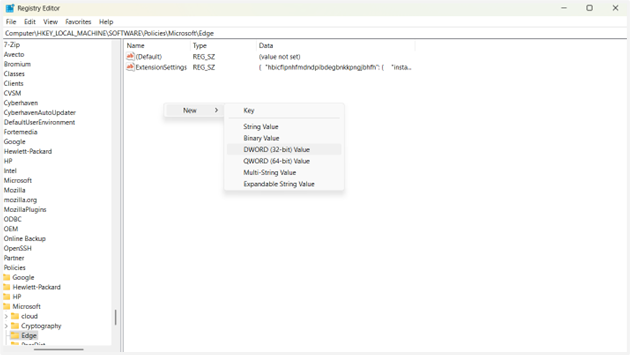
- Name the new value “TranslateEnabled”.
- Modify the value.
- To enable the translation feature, type 1.
- To disable the translation feature, type 0.
- Close Registry Editor.
- Restart Microsoft Edge to apply your changes.
Method 3: Configure Edge browser translate via Command Prompt
📌 Use Cases: Batch configuration and automated changes to a registry.
📌 Prerequisites: Administrator privileges.
Steps:
- Press Win + R, type cmd, and press Ctrl + Shift + Enter.
- To enable the translation feature, run this command:
reg add “HKLM\SOFTWARE\Policies\Microsoft\Edge” /v TranslateEnabled /t REG_DWORD /d 1 /f - To disable the translation feature, run this command:
reg add “HKLM\SOFTWARE\Policies\Microsoft\Edge” /v TranslateEnabled /t REG_DWORD /d 0 /f - Restart Microsoft Edge to apply your changes.
Method 4: Configure Edge browser translate via PowerShell
📌 Use Cases: Deploy scriptable solutions that automate registry changes across your entire enterprise.
📌 Prerequisites: Administrator privileges.
Steps:
- Press Win + R, type powershell, and press Ctrl + Shift + Enter.
- To turn translation on, run the following:
New-Item -Path “HKLM:\SOFTWARE\Policies\Microsoft\Edge” -Force New-ItemProperty -Path “HKLM:\SOFTWARE\Policies\Microsoft\Edge” -Name “TranslateEnabled” -Value 1 -PropertyType DWord -Force
- To disable translation, run the following:
New-Item -Path “HKLM:\SOFTWARE\Policies\Microsoft\Edge” -Force New-ItemProperty -Path “HKLM:\SOFTWARE\Policies\Microsoft\Edge” -Name “TranslateEnabled” -Value 0 -PropertyType DWord -Force
- Restart Microsoft Edge to apply your changes.
Method 5: Configure via Group Policy
Modify your policy to set the rules for website translation in your organization.
📌 Use Cases: Centrally manage translation prompts in AD-joined environments.
📌 Prerequisites: Administrator privileges. Updated Microsoft Edge ADMX templates
Steps:
- Press Win + R, type gpedit.msc, and press Ctrl + Shift + Enter.
- Navigate to: Computer Configuration > Administrative Templates > Microsoft Edge > Languages
- Double-click the “Offer to translate pages that aren’t in a language I read” policy.
- To enforce Edge browser translate, choose Enabled.
- To block Edge browser translate, choose Disabled.
- To let users decide, choose Not Configured.
⚠️ Things to look out for
|
Risks |
Potential Consequences |
Reversals |
| Incorrect registry path | Erratic MS Edge Language services | Delete the faulty key and restart Edge |
| Incorrect value/syntax used in Command Prompt | Misconfigured registry | Execute the correct “reg add” command with the proper values |
| Incorrect ADMX templates used | The translation feature becomes unavailable to all users | Correct the policy in gpedit.msc and run gpupdate /force |
How to verify Microsoft Edge translation policies
To ensure that your Microsoft Edge translation policies were successfully applied, simply do the following:
- Open Microsoft Edge.
- Type edge://policy in the address bar and press Enter to view applied policies.
- Confirm that the TranslateEnabled policy is set to your desired configuration.
Additional considerations for Edge browser translate management
Use these valuable insights about using Microsoft Translator in Edge for efficient and hassle-free rollouts.
Manual translation
You can configure how Edge’s translate feature behaves via in-browser settings or other means. But keep in mind that these changes don’t remove the option to manually translate pages (further restrictions can limit this).
User changes are overwritten
The Microsoft Edge translation policies you set will always override user-made changes. This is especially useful for standardization purposes and lowers the chances of misconfigurations, which can threaten a computer’s stability.
Troubleshooting Microsoft Edge translation
Certain methods that toggle Edge browser translate involve low-level settings, which can risk your cyber stability. Here are the most common problems you may encounter and how to solve them.
Edge translation policy is not taking effect
You may be noticing that no Edge browser changes are taking place. If so, confirm the registry path you used (if relevant) and check for any typos in your syntax. Know the risks and what to look out for in our tabled guide.
Group Policy setting is not applying
If your Group Policy changes aren’t materializing, check your ADMX templates by going to Computer Configuration > Administrative Templates > Microsoft Edge and manually refresh your Group Policy settings using gpupdate /force.
Managing the Microsoft Edge translate page function
Tailoring the Edge browser translate experience to your user base ensures accessibility when you need it or optimized workflows for online tasks. When updating translation tools via advanced methods, always save a backup to serve as your organization’s configuration baseline.
Related links:
- How to Enable or Disable Split Screen Feature in Microsoft Edge
- How to Enable or Disable Sync Browsing Data in Microsoft Edge Across Devices
- How to Enable or Disable Autofill in Microsoft Edge in Windows 10
- How to Install Progressive Web Apps (PWAs) on Microsoft Edge in Windows 10
- How to Disable Microsoft Edge from Launching at Startup in Windows
- How to Enable or Disable IE Mode in Microsoft Edge
- How to Enable or Disable “Add Profile” in Microsoft Edge
Quick-Start Guide
NinjaOne can help you manage Microsoft Edge translation settings. The NinjaOne blog provides a detailed guide on enabling or disabling pop-up page translation in Microsoft Edge. You have several options to manage this setting:
- Manual Settings Method:
- Open Microsoft Edge Settings
- Go to the Languages section
- Toggle the “Offer to translate pages that aren’t in a language I read” option on or off
- Policy Management:
- NinjaOne’s MDM (Mobile Device Management) features allow you to configure browser settings across your organization
- You can create policies to control translation settings for Microsoft Edge
- Registry Modification:
- The script suggests you can modify registry settings to control translation prompts
- This can be done through Group Policy, PowerShell, or CMD
The exact method will depend on your specific organizational needs and management approach. If you want a consistent setting across all devices, I recommend using NinjaOne’s MDM policy configuration to centrally manage this setting.